
Council meeting recorder: AI summary and Word
Try the Informio meeting recorder with audio, live transcription, editable AI summaries and DOCX export. A practical workflow for reviewing the draft.
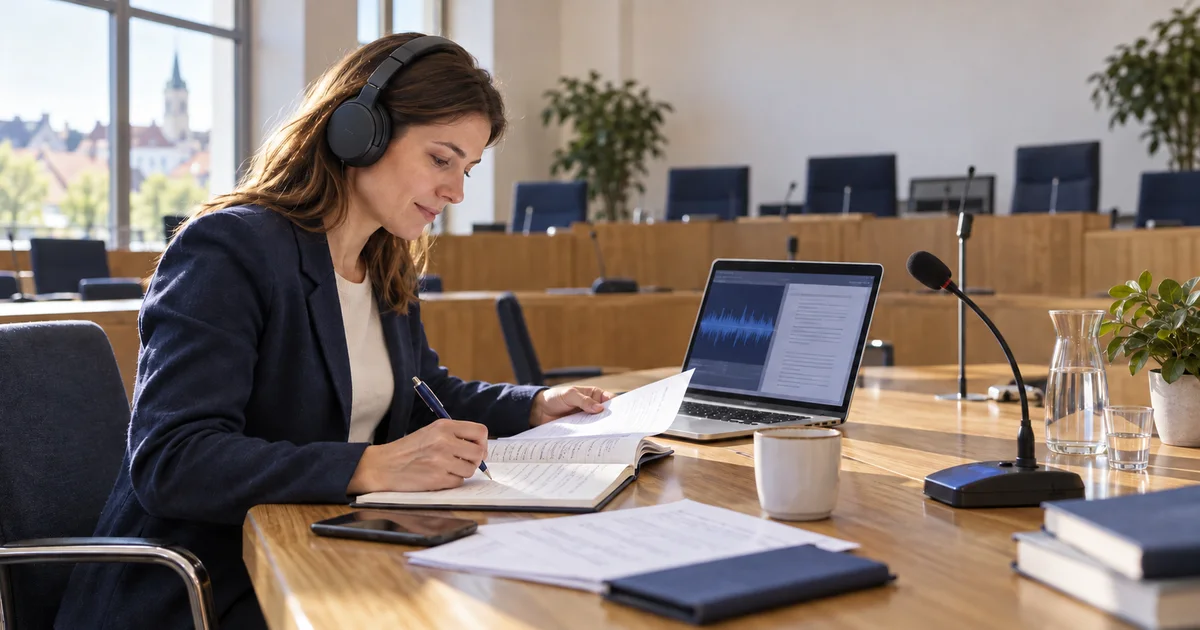
After a meeting, someone must turn a recording and scattered notes into a useful document. This takes care when the discussion returns to an earlier item or mixes proposals with decisions. The Informio council meeting recorder captures audio, provides live transcription where the browser supports it and creates an editable summary from corrected text.
Open the recorder without signing in. Summary generation is free within current operating limits. The output is a working draft for an appointed person to review.
Audio, transcript and summary serve different purposes
Audio captures sound. Live transcription turns recognised speech into text. AI then selects and organises information from the text you submit. Transcription errors can carry into the summary; fluent wording does not establish accuracy.
MDN documents recording and speech recognition as separate browser interfaces. Live transcription support varies. Test the intended computer, browser, microphone and language with a short speech before a real meeting.
From recording to Word
1. Set up and run a short test
Place the microphone where it captures speakers rather than only the laptop user. Try names, an amount and a date. Check audio playback and text. Noise, overlapping voices and distant speakers may reduce usefulness.
2. Record and watch the transcript
You can pause and resume recording. Note unclear passages. Do not assume automatic speaker identification or verified voting records. Download audio and text before starting a new meeting.
3. Correct the text
Check names, figures, dates and negation. “The proposal was not approved” differs from “the proposal was approved”. Resolve gaps against the recording rather than guessing. State the scope if the text covers only part of the meeting.
4. Generate and edit the summary
After you click generate, Informio processes the transcript into an overview, topics, conclusions, tasks and open questions. You can edit each section. Save manual changes before generating again. Long input or a reached limit can restrict generation; the interface explains the issue.
5. Export the reviewed draft
Download the current edited summary as DOCX for Word or a compatible editor. Add verified details and required organisational elements. Exporting a draft does not make it approved minutes.
What the reviewer should compare
- Whether a discussed proposal was incorrectly turned into a decision.
- Whether names, amounts and dates match the recording and source material.
- Whether each task includes only explicitly assigned owners and deadlines.
- Whether missing information remains marked as unverified.
- Whether voting details match a separately verified record.
NIST identifies convincingly worded incorrect output as a generative AI risk. Review the source material rather than judging the summary by fluency.
Example: a pavement repair discussion
In an illustrative discussion, participants propose a repair, consider funding and request a revised budget. If the transcript does not record a resolution, the summary should not report approval. Record a budget task only to the extent explicitly assigned in the discussion.
Where the data goes
Informio does not receive recorder audio. Live transcription may nevertheless send sound to the browser provider's service, so the workflow cannot be described as fully offline. Text reaches Informio when you request an AI summary; the edited summary is also submitted for DOCX export.
The tool attempts to keep one working recording in local browser storage. If storage is unavailable, it uses memory and prompts you to export. Clearing browser data, switching devices or starting a new recording may affect availability. Store downloaded audio and text under your organisation's process.
Start with a short practice meeting
Use a prepared speech without sensitive information. Test pause, transcript editing, summary and Word export, then assess suitability for a longer meeting. The recorder complements Informio's municipal website assistant, which answers from selected knowledge sources.
Open the recorder and create your first practice summary.