
An AI chat should work for everyone: a practical accessibility test for websites
A chatbot may know the right answer while some visitors cannot reach it. Use this practical checklist for keyboard access, focus, screen readers, contrast and mobile layouts.
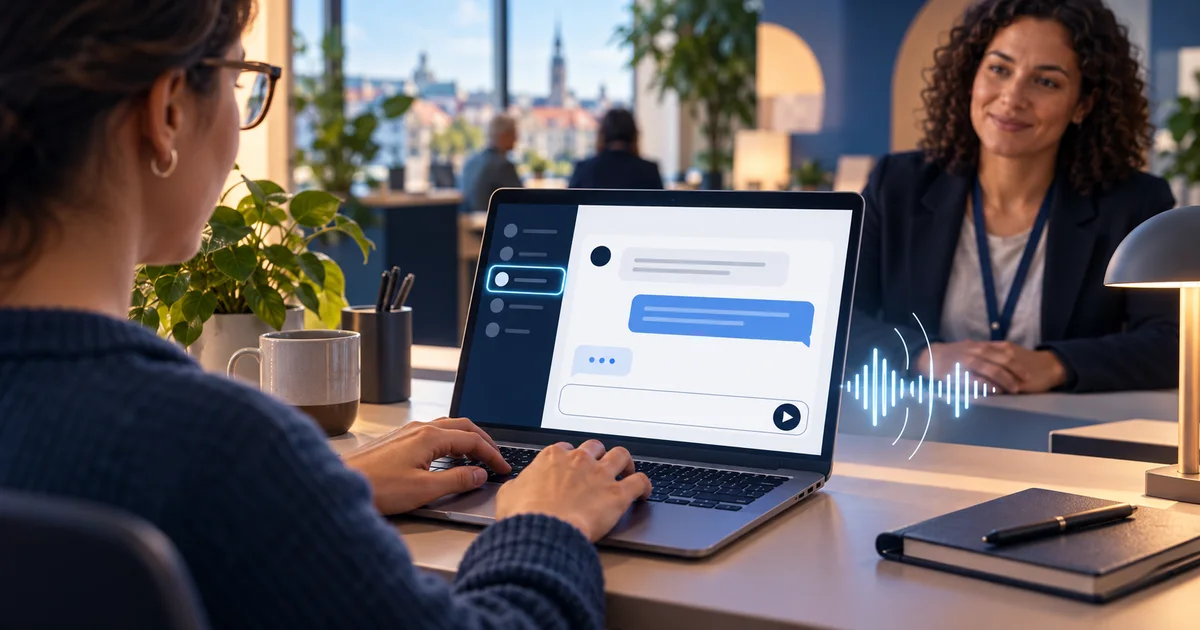
Imagine someone visiting a municipal website to find opening hours. The AI assistant knows the answer. But if they cannot open the chat with a keyboard, focus disappears when the panel opens, or a screen reader does not announce the reply, that answer might as well not exist. The same barrier can cost an online store a sale or leave a support request unresolved.
Accessibility is not decoration for a chat interface; it determines whether the service works for a person. W3C's WCAG 2.2 covers keyboard operation, visible focus, contrast, narrow-screen reflow and status messages. Still, a feature list is not evidence of compliance. Test the actual widget in the context of the actual website.
The first question in an AI-chat test is not only “Is the answer correct?” It is “Can every visitor reach it, read it and continue?”
1. Complete a conversation without a mouse
Put the mouse away and start at the top of the page. Use Tab to find the chat launcher, activate it with Enter or Space, ask a question, submit it and close the chat. Where does focus end up? It must remain visible and follow a meaningful order. A non-modal panel should let people return to the rest of the page. A truly modal panel must behave as a modal, including focus management and returning focus to its launcher when closed.
Also test Escape, Shift+Tab, a long answer, an error and a handoff to a human operator. A common failure is a panel that appears visually while keyboard focus stays on a hidden element behind it.
2. Controls need names that explain their purpose
A speech-bubble icon, send arrow and close cross all need understandable accessible names. The message field needs a clear label; a placeholder alone is not enough. Names should be natural in every supported language and match the action. A screen reader should announce something like “Open chat”, “Write a message” and “Send”, not just “button”.
3. New answers must not be silent or overwhelming
An AI reply arrives after the visitor submits a question. A screen-reader user needs to know that something changed. W3C explains status notifications and live regions; a routine reply often suits a non-interrupting announcement. That does not mean announcing every character of streamed text. Check that the finished reply is announced once, in a sensible order, and that an error message explains what to do next.
4. Test contrast, zoom and mobile together
Check light and dark themes, text against message bubbles, visible focus and controls that do not rely on colour alone. Increase text and browser zoom, then try a narrow mobile viewport. The message field, close button and end of a long answer must remain usable. Motion should respect the visitor's reduced-motion preference. WCAG 2.2 provides measurable criteria; “it looks contrasting enough” is not a test.
5. Language and content also matter
A technically operable chat can still fail if answers are full of unexplained jargon. Use short paragraphs, descriptive links and a concrete next step. A municipality can point to the right form and contact; a store should link to its delivery page instead of saying “click here”. Check that the page language is available to assistive technology and that interface translations are complete.
A small test plan for a small team
- Three tasks: find information, ask a follow-up and request a person.
- Three input methods: mouse, keyboard only, and screen reader plus keyboard.
- Three views: desktop, narrow mobile and enlarged text.
- Two extra states: a slow response and a server error.
Record specific barriers rather than only an automated tool's score. A scanner catches some technical defects but cannot replace a real conversation using assistive technology. Repeat the same scenarios after a fix; a styling or widget update can reintroduce an old barrier.
Applying this to Informio
Informio embeds an assistant as a separate widget with a localised interface. During deployment, check the full journey on your own site: launcher, question, answer, close and return to the page. Quality Lab can preserve questions and expected answers, but interface accessibility still needs manual browser and screen-reader testing.
Start with a small pilot that uses different input methods. You will find barriers before your visitors do. Talk to Informio about testing an assistant with real questions from your website.