
OCR for AI assistants: how to check text in scanned PDFs
A scanned manual can look perfect while giving an assistant no usable text. Learn how to prepare OCR, check numbers and tables, and test your knowledge base with a small sample.
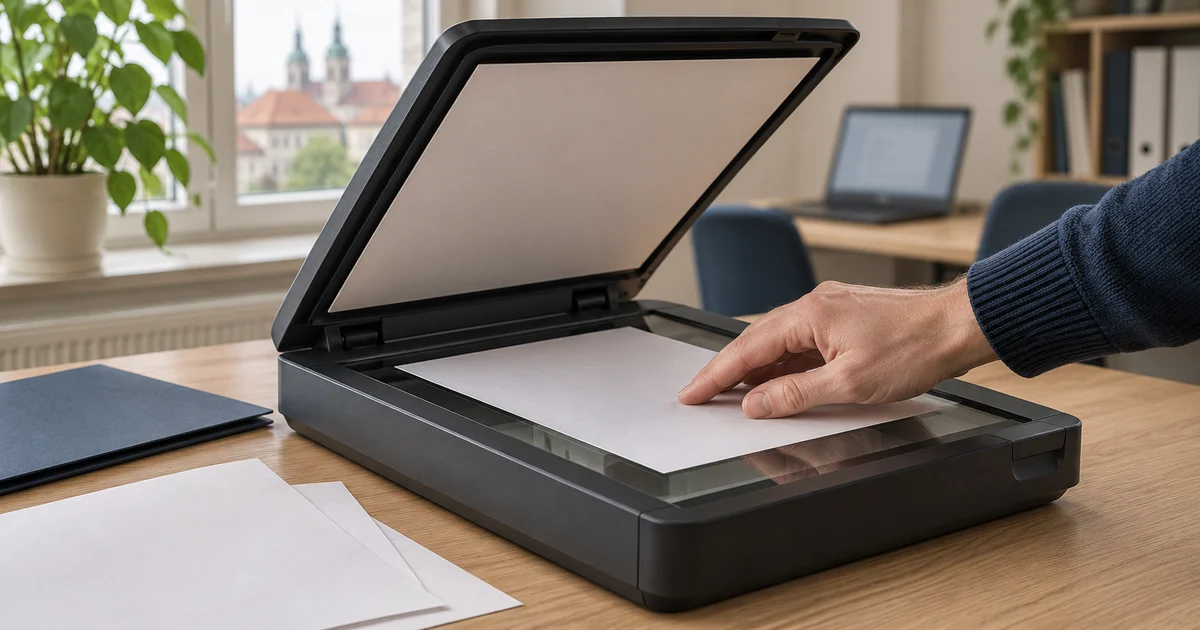
Your manual is a PDF, it reads well on screen, and it contains everything needed. Yet once it is added to the knowledge base, the assistant cannot find a product code or mixes up quantities. Before changing its instructions, check the document text. With a scan, the problem can start between the image of the page and the words the system processes.
For a business, this might be an old catalogue; for a municipality, a scanned information leaflet. The following workflow helps you prepare a small, checked sample and decide what to fix before uploading an entire archive.
Try searching and copying first
OCR means optical character recognition: it turns an image of a page into actual text. W3C's PDF7 technique describes this principle.
Open a representative page and search for a specific code. Then select a paragraph with your mouse and copy it into a plain text editor. Compare the result with the original. Being able to select a heading is not enough; bullet points, notes and the second column matter too.
If you can only copy an image or get no usable text, prepare OCR. In a mixed document, check every type of page: the introduction may contain text while an appendix remains a scan. A searchable PDF still needs an accuracy check.
Choose the right language and a clear scan
Acrobat lets you set the language and page range for recognition. Adobe's official instructions describe these options.
Start with a few pages containing small print, accented characters and a table. Select the original text's language and save the result as a separate working version. For a multilingual appendix, check which combinations your tool supports.
Tesseract's documentation recommends at least 300 dpi and explains that skew affects recognition. Input quality recommendations.
If you can scan the document again, remove shadows and straighten the paper. Enlarging a blurred photograph does not itself restore missing details. With a poor original, typing and checking a short, important passage may be quicker.
Check the details that change meaning
A readable sentence does not guarantee a correct fact. Focus your checks on the items the assistant will later use in an answer:
- Product codes: the letter O and the digit 0 can look similar.
- Decimals and units:
0.5 lmust still mean half a litre. - Tables: the name, value and note must belong to the same row.
- Conditions and exceptions: losing the word “only” can change an entire rule.
Imagine a sample leaflet that says:
Set AB-10. Pack contents: 5 pieces.
Set AB-20. Pack contents: 10 pieces.
The final character in both codes is a zero. If OCR produces AB-1O, searching for the correct code may fail. If copying a table moves the value 10 to the first row, the assistant receives incorrect source material. Always compare a correction with the original; filling in a guess would merely hide the error.
Add the checked version to the knowledge base
Keep the original scan and name the working copy so that its contents and edition are clear. Select the current, checked version for the knowledge base. Do not add an older version covering the same products without distinguishing when it applies.
For PDFs, Informio extracts the document's available text; it does not automatically perform OCR on scans at this step. Prepare recognition before uploading. Alternatively, turn an important, verified passage into a manual text source.
Upload a trial document first and wait for processing to finish. After correcting a source, check that it has been processed again. Simply saving an edited PDF on your computer does not change the assistant's content.
Five questions to catch errors after upload
For the trial, use an assistant with this checked sample. Compare each specific fact in its answers with the original:
- “How many pieces does set AB-10 contain?” The expected figure is 5.
- “And set AB-20?” In the same conversation, both the product and quantity must change, to 10.
- “List both codes and their pack contents.” Check the pairing of values and the zero in each code.
- “What is this quantity based on?” Check the source given and the relevant passage.
- “How much does the set cost?” Our sample leaflet contains no price; the answer must not invent one.
In Informio, start with a few pages from your own manual. Record incorrect answers, correct the text and repeat the trial. Once the codes, values and exceptions are correct, you have a usable pattern for preparing more documents.