
How to keep holiday opening hours accurate in AI chat
The branch page says 4 pm, while the December notice says noon. Which time will your AI chat give? Set clear holiday hours for each location and service, then test the answers before anyone sets off.
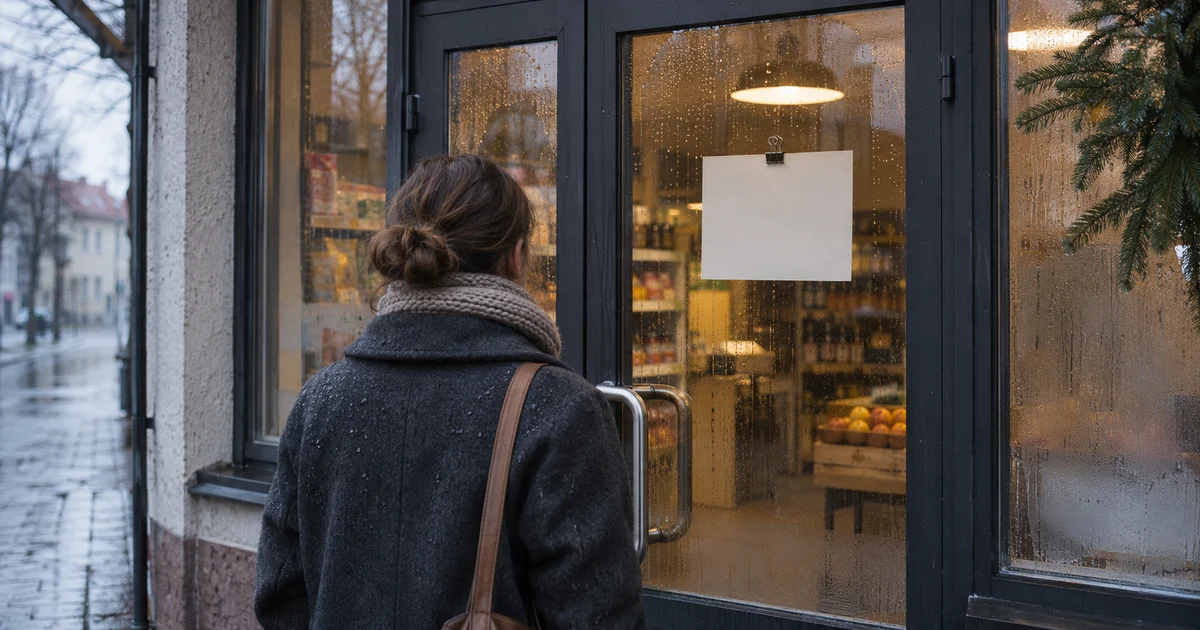
“Can I pick up my parcel at 1 pm on 30 December?” The pickup page says the counter is open until 4 pm. A December notice says it closes at noon. An assistant that finds both pages could repeat the regular hours. The customer discovers the discrepancy at the door.
Before the holidays, check the places people use to plan a visit: the branch page, the business profile in Google Maps and the chat. All three should give the same answer about a specific day and service.
Record the date, location and service for each exception
“Hours vary over the holidays” is a heads-up. In the schedule itself, give the full date including the year, the location, the service and the exact hours. Say explicitly when a service is closed. Use local times and name the relevant time zone if you operate across several.
- Example pickup counter in Nitra: On 30 December 2026, customers can collect ready orders from 8 am to noon. Online orders can still be placed after noon. Wait for confirmation that your parcel is ready before setting off.
- Example municipal office: On 30 December 2026, the submissions desk accepts documents in person from 8 am to noon. The civil registry is closed that day. The assistant needs to give the hours for the service the visitor asked about.
Use the exception whenever it matches the location, service and date in the question. If someone asks “Are you open tomorrow?” and the branch or service is unclear, one follow-up can settle it. Include the calendar date in the answer so it still makes sense if the visitor reads the conversation later.
Work from one approved schedule
Assign someone to approve the schedule and update it if plans change. Put the exceptions in readable text next to regular hours on the relevant branch or office page. Link to that page from the holiday notice. If an older FAQ gives different hours for the same date, update it or take it out of the assistant's sources.
If your site uses LocalBusiness structured data, compare it with the hours visitors see. Google documents how to define the start and end of a seasonal exception with validFrom and validThrough. Google's documentation on seasonal hours.
For a managed Google Business Profile, use Special hours to enter a short-term change for the specific date. After saving, check the public profile for the right branch. Google's guide to setting Special hours.
Once the website is updated, refresh the source in your knowledge base and check that processing has finished. Tell the assistant which schedule takes precedence on holiday dates. If hours for a location and date are unconfirmed or two approved sources disagree, have it give the contact details for someone who can confirm the hours.
Test four questions before the holidays
- “Can I collect my parcel in Nitra at 1 pm on 30 December?” Pickup ends at noon. The assistant can remind the customer to wait for confirmation that the parcel is ready.
- “Can I still place an order at 1 pm that day?” Yes, online ordering is available. Pickup and online ordering have separate hours.
- “Is the civil registry open on 30 December?” It is closed in the example. The submissions desk has its own hours.
- “Are you open tomorrow?” In a new chat with several possible branches or services, the assistant asks for the missing detail. It then gives the exact date and links to the current schedule when available.
Ask the first two questions in the same conversation. Check whether the assistant carries the date and branch forward when the service changes. Then ask about the first regular day after the exception. The answer should use the hours for that day.
Check the return to regular hours
Put a check in the calendar for the first working day after the exception. Bring the current hours back to the foreground on the branch page and mark the expired notice with its dates. If a municipality keeps the notice in an archive, retain its original date and link to the current schedule. Refresh the source, then ask “Are you open today?” and compare the answer with the website.
To try this with your own data, start with one branch and one opening-hours page in Informio. Ask the four questions and compare the replies with your approved schedule.